
Colophon docsTheme settings
Theme settings
Colophon has 18 settings. Every one has a default that already looks right, so change only what you want to.
Where the settings live
In Ghost Admin, go to Settings → Design & branding → Customize and open the Theme tab. Ghost puts the settings in three groups: Site wide, Homepage and Post. The preview on the left updates as you go. Click Save to make it live.
Your accent colour, publication logo, publication icon, cover image and fonts are one tab over, under Brand. They are Ghost settings, not theme settings.
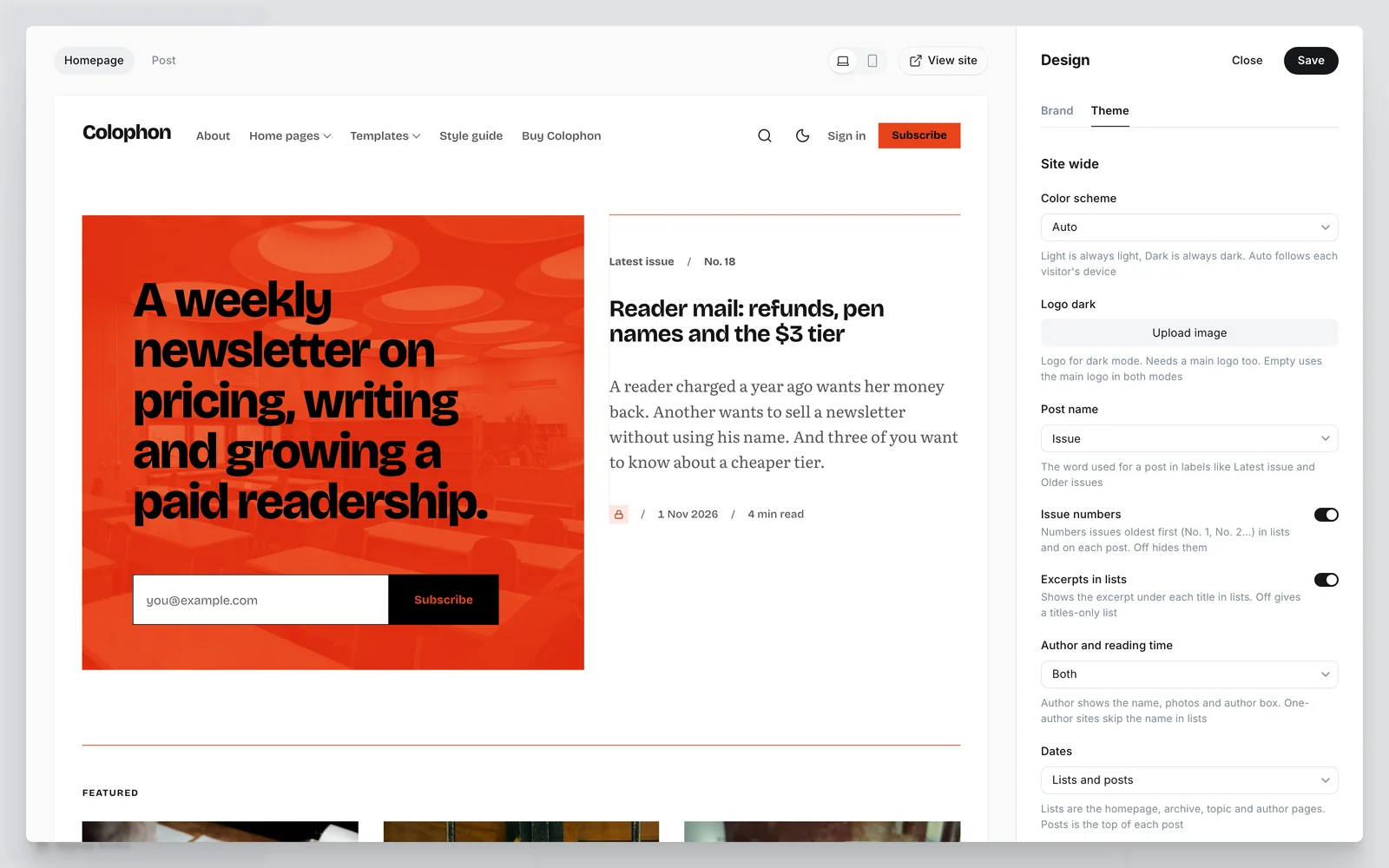
Site wide
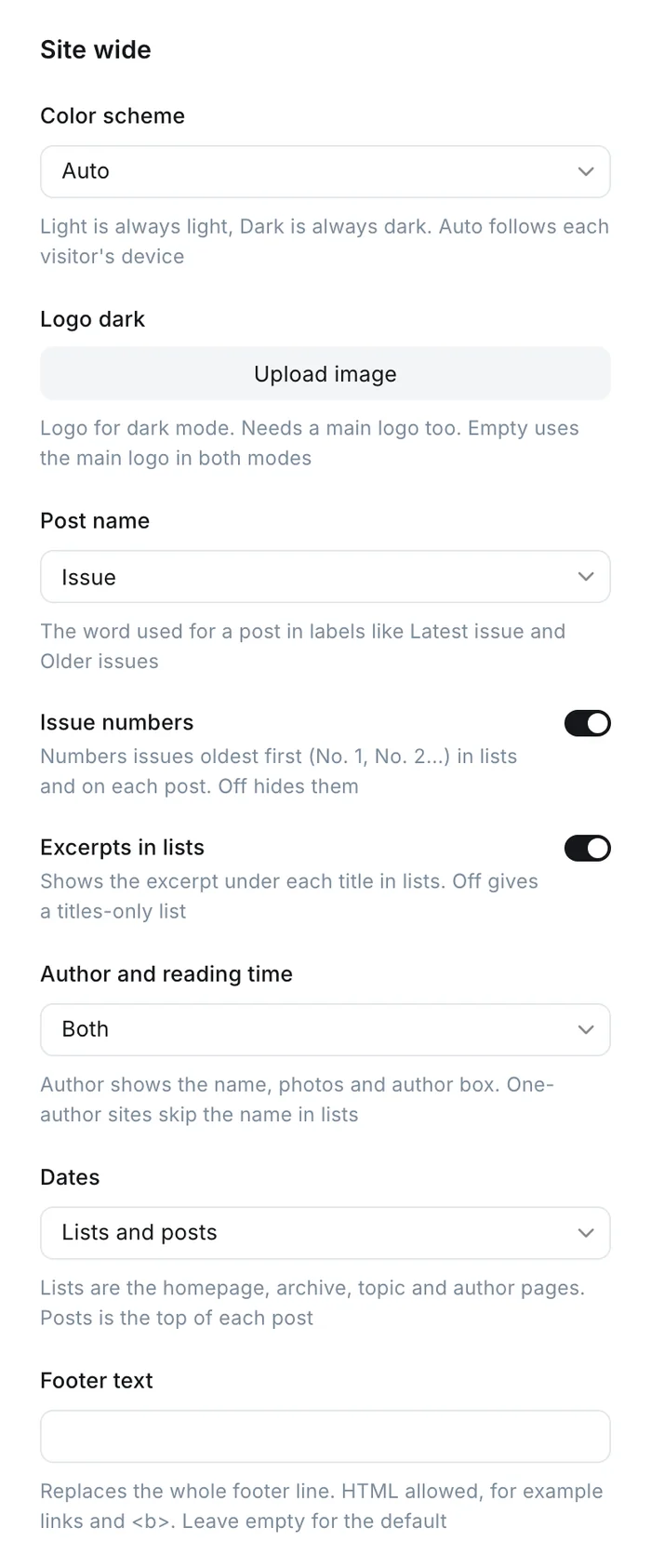
Color scheme
Light is always light. Dark is always dark. Auto follows each visitor's device and adds a light and dark button to the header. See Colours and type.

Dark logo
A logo for dark mode. Upload one that reads on a dark background. It needs a Publication logo under Brand too. Left empty, Colophon uses your main logo in both modes. See Logo.

Post name
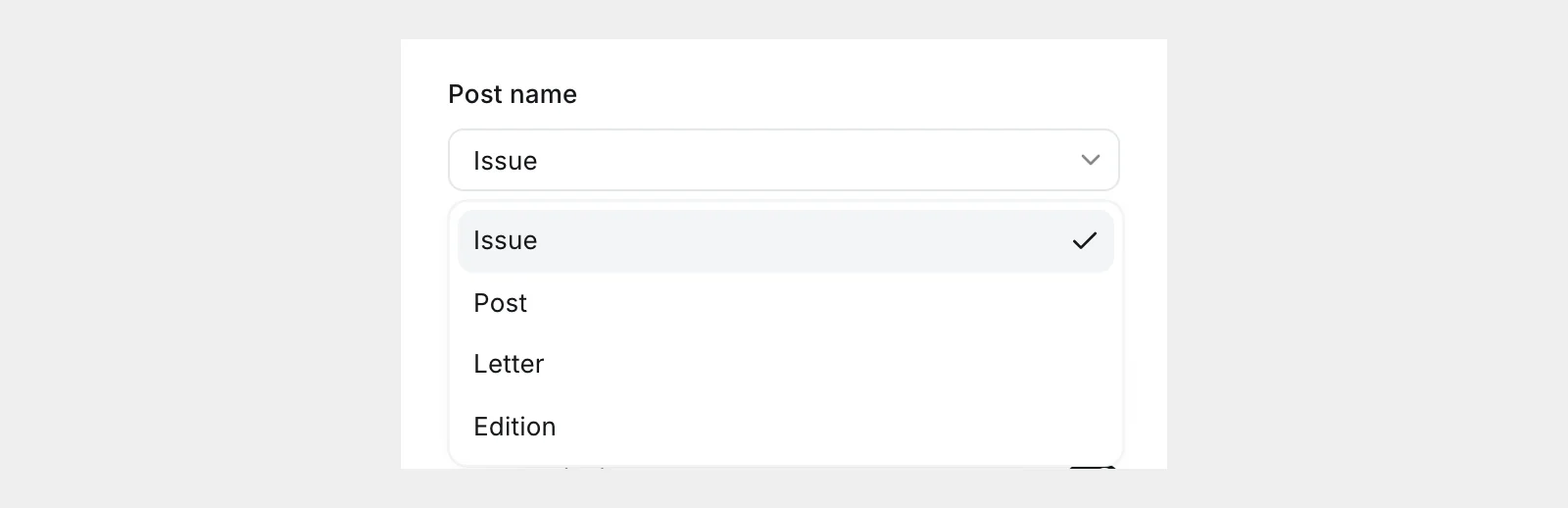
The word Colophon uses for a post in its labels: Latest issue, Older issues, the Archive filter, signup text. Choose Issue, Post, Letter or Edition. Your own post titles and menu labels do not change. Ghost Admin labels always say "post".
Issue numbers
Numbers posts oldest first (No. 1, No. 2 and so on) in lists, on the latest-post card and on each post. Off hides the numbers everywhere. See Issue numbers.
Excerpts in lists
Shows the excerpt under each title in lists. Off gives a list of titles only. Featured cards always keep their excerpt.
Author and reading time
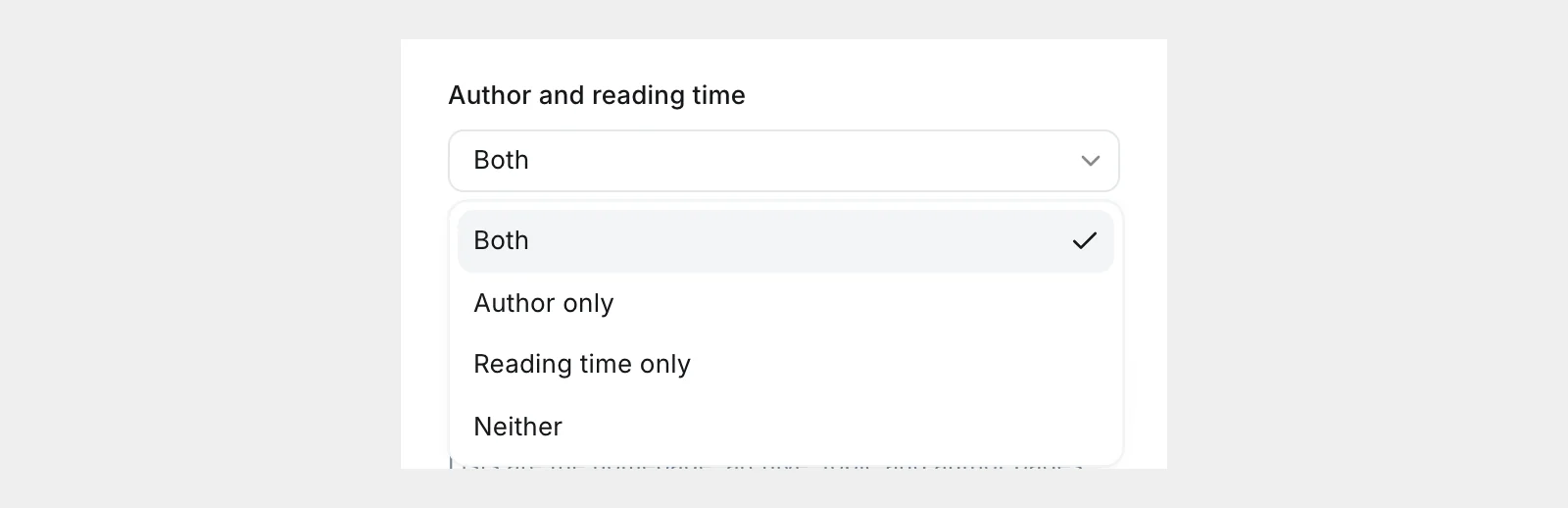
Choose Both, Author only, Reading time only or Neither. The author part is the name, the photos at the top of a post and the author box under it. On a site with one author, lists skip the name.
Dates
Lists and posts shows dates everywhere. Posts only keeps the date on the post and drops it from lists. Hidden shows no dates. Lists are the homepage, Archive, topic and author pages.

Footer text
Replaces the whole footer line, including the "Published with Ghost & Colophon" credit. You can use HTML, for example links and <b>. Left empty, the footer shows the copyright, your site title and the credit.
Homepage
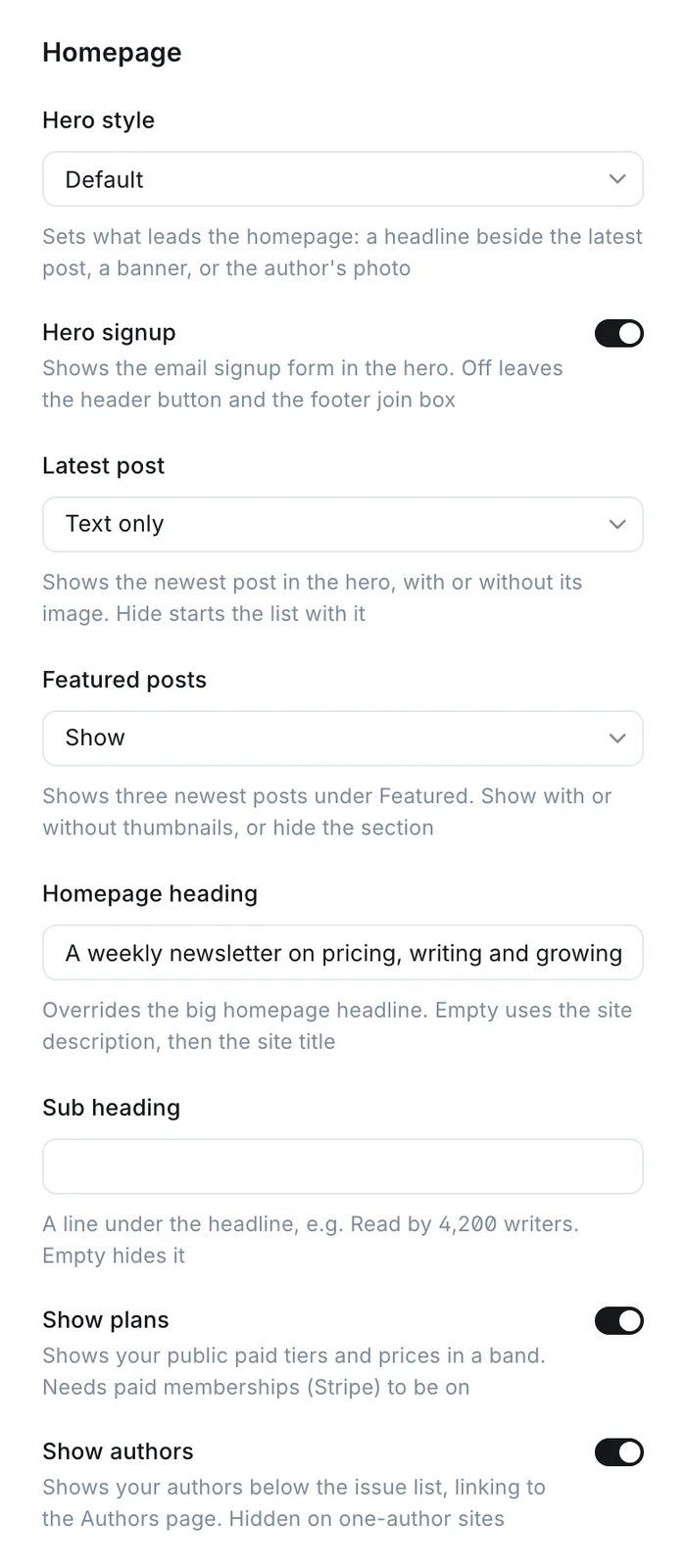
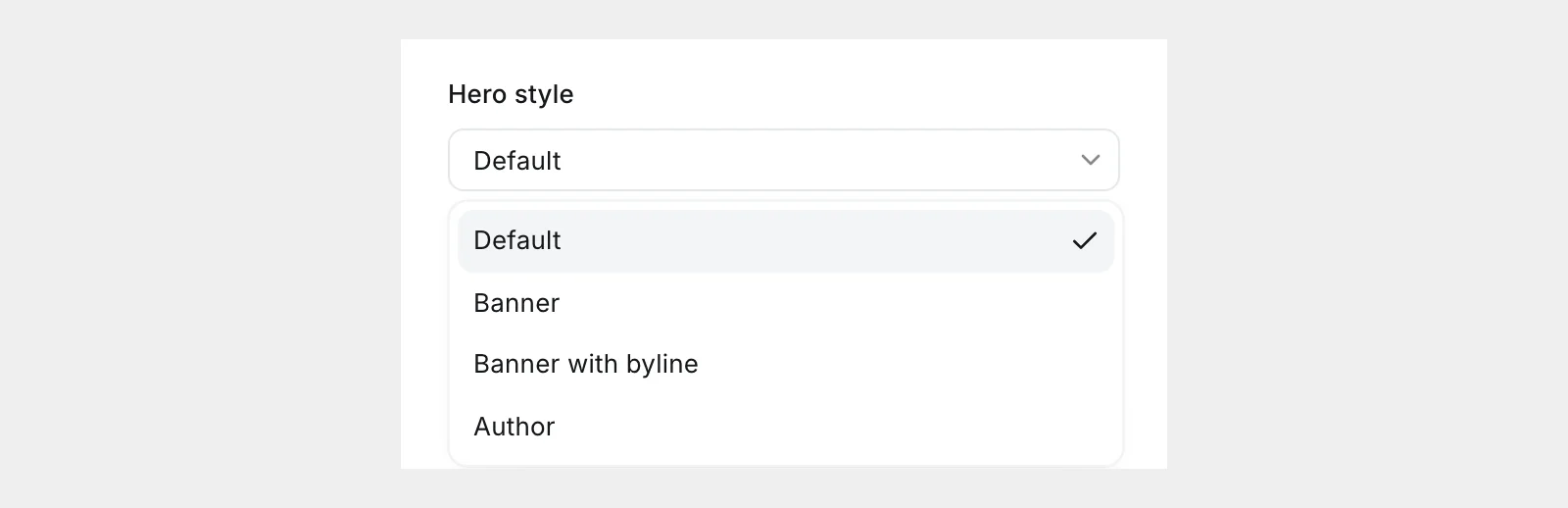
Hero style
What leads the homepage: Default, Banner, Banner with byline or Author. See Hero styles.
Hero signup
Shows the email signup form in the hero, in every hero style. Off leaves the Subscribe button in the header and the join band in the footer.
Latest post
Shows your newest post in the hero. Image and text includes its image, Text only leaves it out, Hide removes the card. With Hide, the list below starts with the newest post.

Featured posts
Shows your three newest featured posts under the hero, headed Featured. Show includes thumbnails, Show without thumbnail leaves them out, Hide removes the block. The block is also hidden when no post is featured.

Homepage heading
The big headline. Left empty, Colophon uses your site description (Settings → General → Title & description), then your site title. The description is not repeated under the headline.
Sub heading
One line under the headline, for example "Read by 4,200 writers." Left empty, nothing shows.
Show plans
Shows your public paid tiers and their prices. It needs Stripe connected and at least one public paid tier.
Show authors
Shows your authors as cards, with a link to the Authors page. It is hidden on sites with one author.
Post
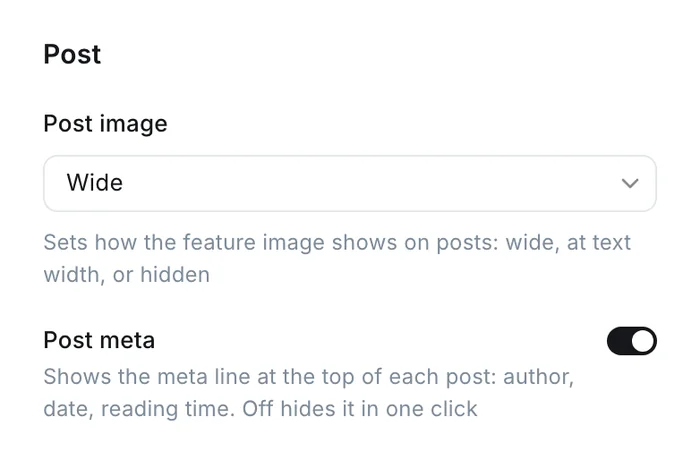
Post image
How the feature image shows on a post. Text width lines it up with the text. Wide runs it wider than the text. Hidden leaves it out of the page. It is still used for social sharing. The Wide template always shows a full-width image and the Essay template never shows one.

Post meta
Shows the line at the top of a post with the author, date and reading time. Off hides it, together with the author photos. The Free, Members or Paid label stays. Lists are not affected.
Reading aids
There is no setting for these. Every post gets a thin progress bar that fills as the reader scrolls, and a table of contents when it has at least three Heading 2 or Heading 3 headings. To hide the table of contents on one post, add the internal tag #no-toc to it. This works the same on the Wide and Essay templates.
Things that are not theme settings
- Accent colour, publication logo, publication icon, cover and fonts are on the Brand tab. See Colours and type.
- Featured posts are picked per post with Feature this post.
- Plans and prices come from Settings → Tiers.
- Join box text comes from a page with the
#jointag. See Join box text. - Comments are Ghost's own. Turn them on in Settings → Membership → Access, under Commenting.