
Colophon docsTemplates and menus
Templates and menus
Post templates
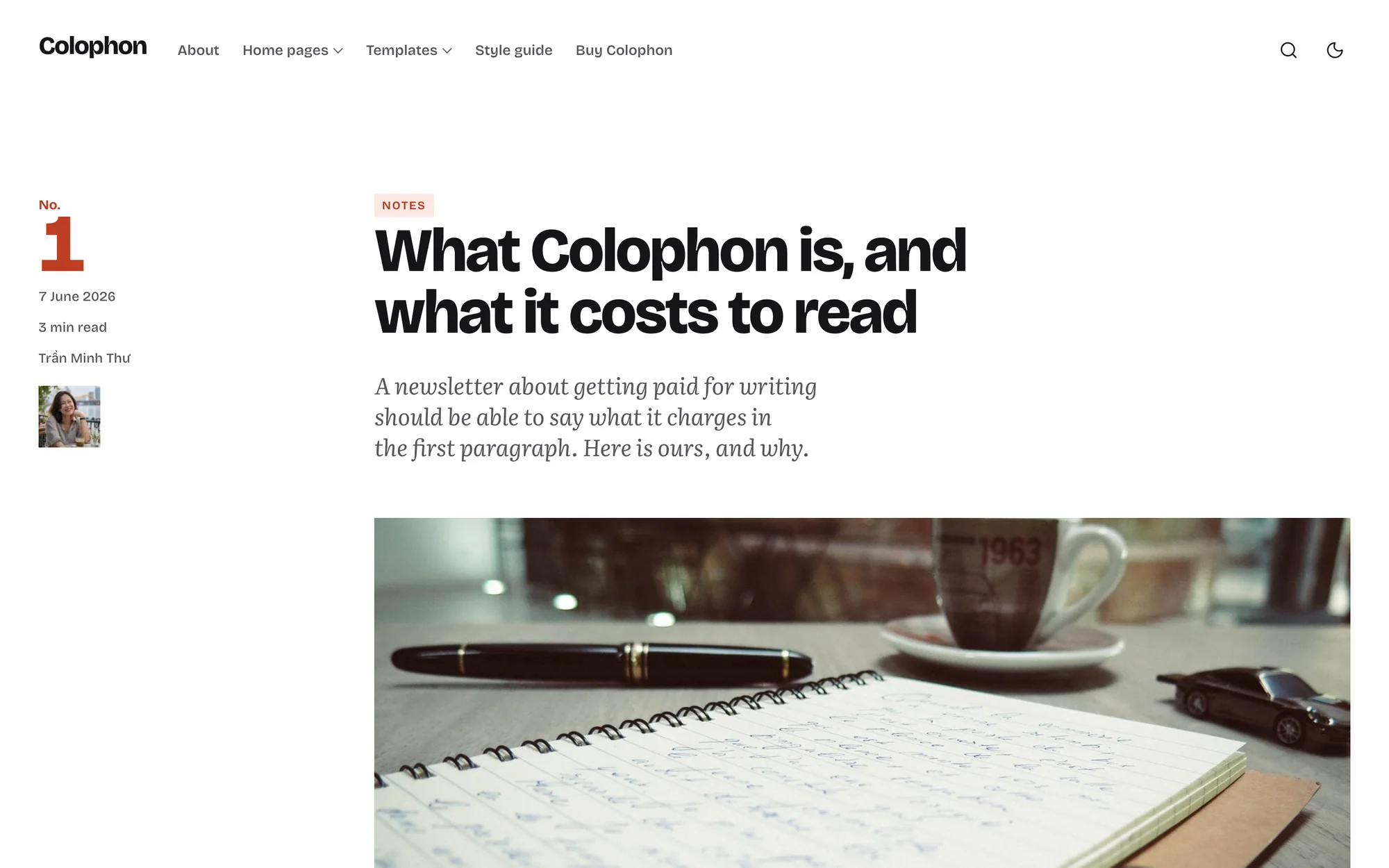
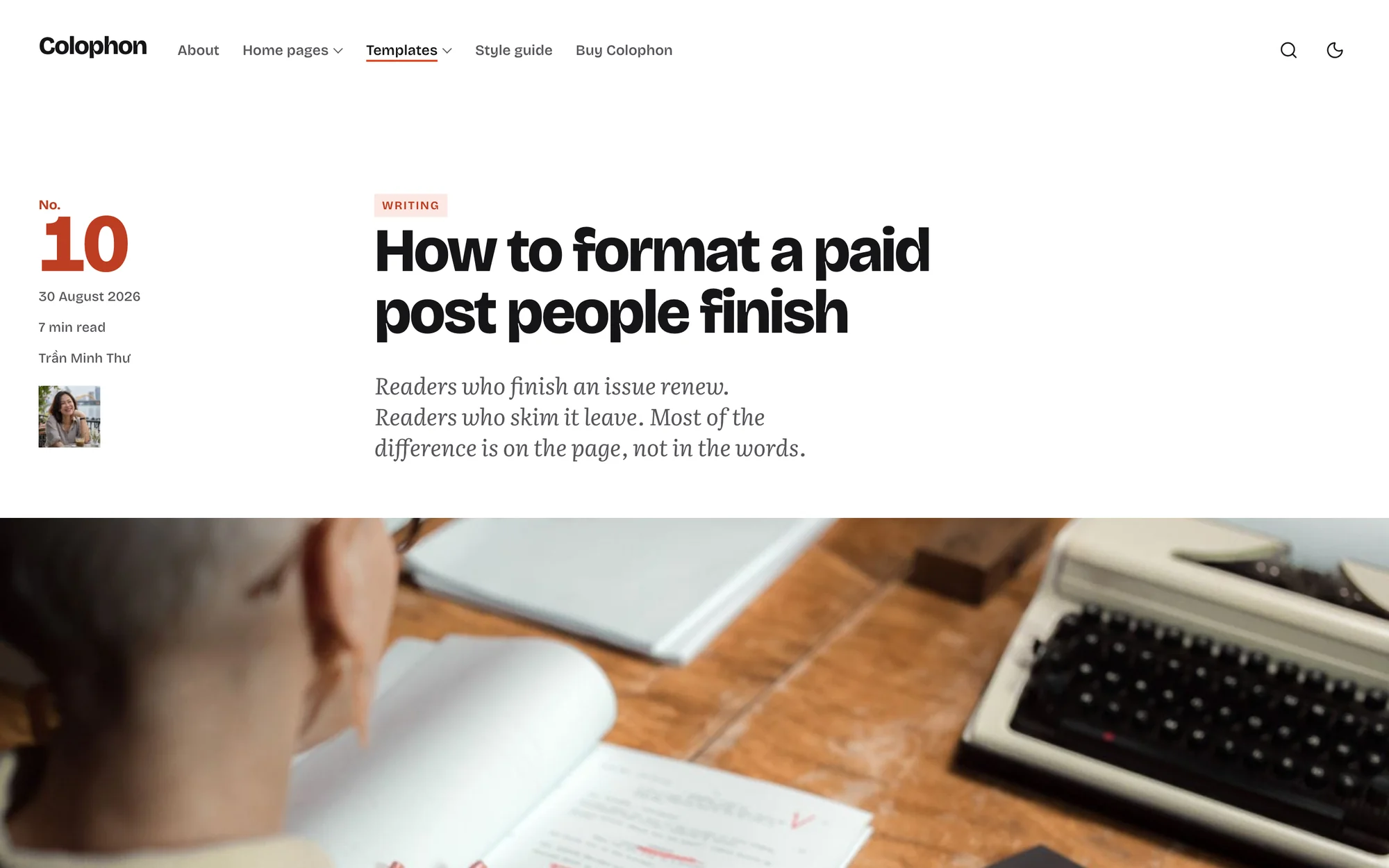
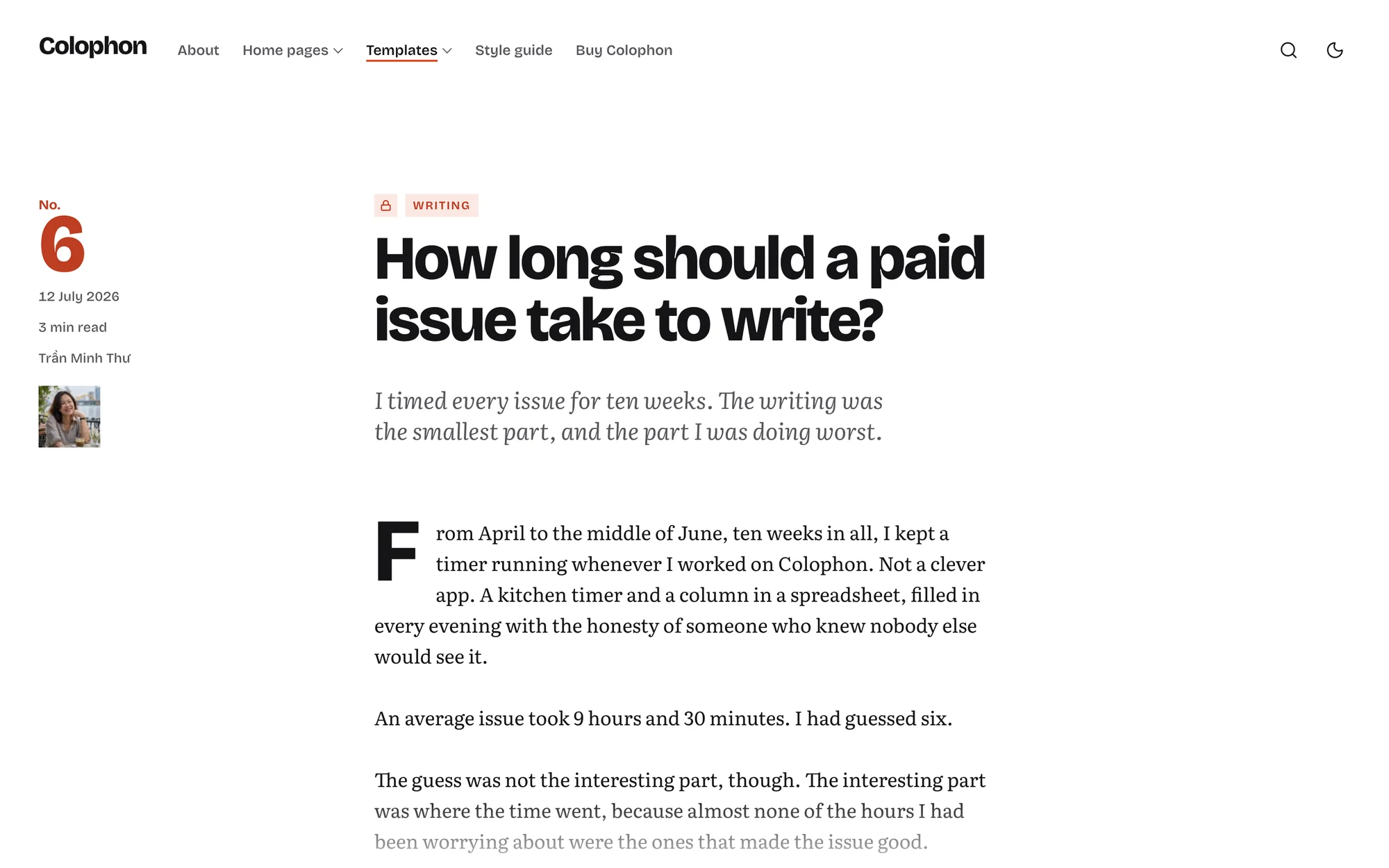
In the post editor, click the Post settings icon (top right) and pick a Template.
- Default: an ordinary post. The feature image follows the Post image setting.
- Wide: a full-width feature image, for a post led by a picture.
- Essay: no feature image, and a large first letter on the first paragraph. For long text.
Wide and Essay also work on pages.
Page templates
Create a page, click the Page settings icon and pick a Template. Ghost shows the template names from the file names.
| Template | What it shows |
|---|---|
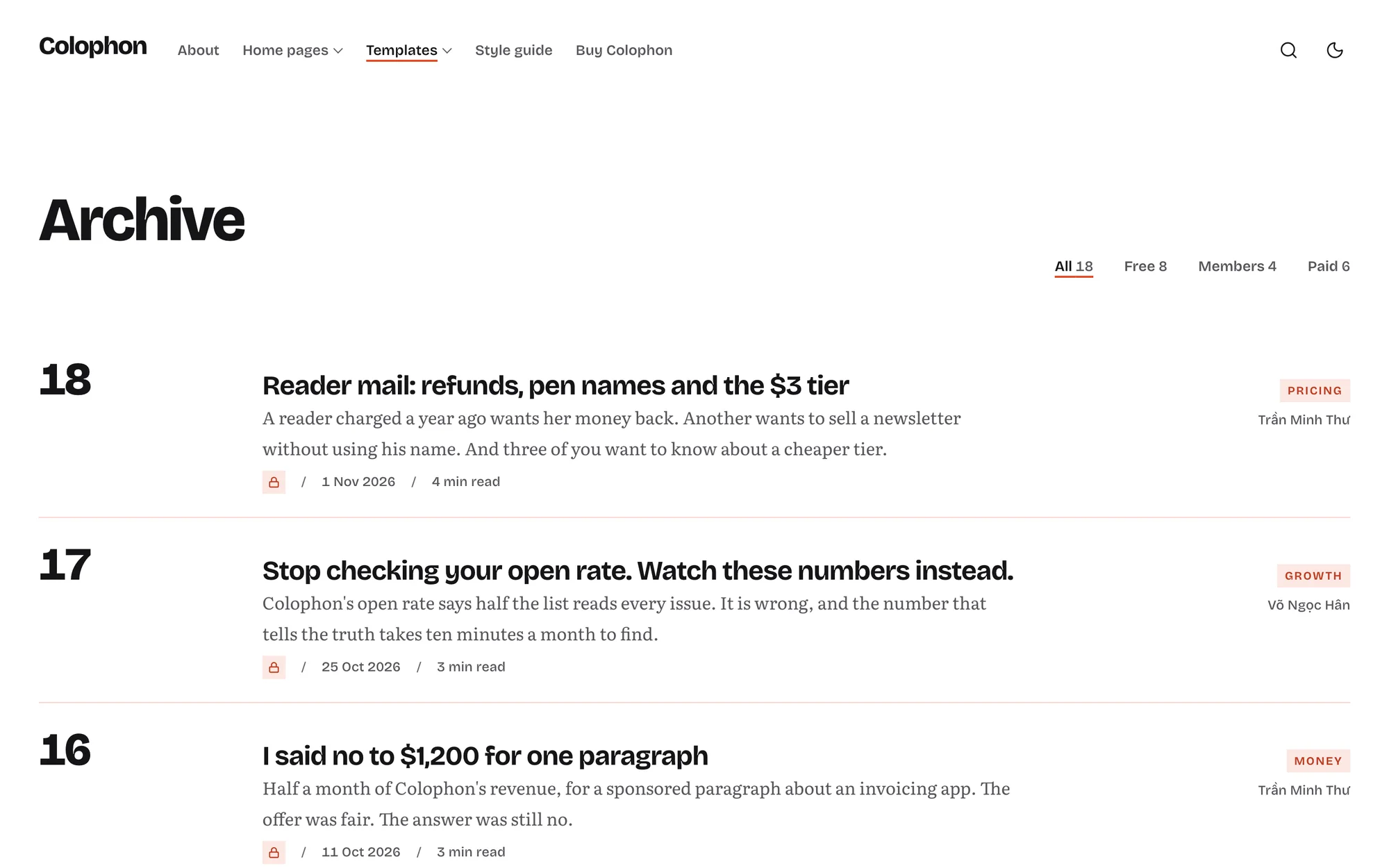
| Archive | Your newest 100 posts in one numbered list. On sites with paid plans, filters for Free, Members and Paid. More than 100 posts: an Older link continues in the normal paginated list. |
| Membership | Your plans, read from Ghost, with the page text above them. On a free newsletter it shows a signup box. With memberships off it shows the page content only. |
| Tags | Every public topic with its description and how many posts it holds. The page excerpt shows as a sub heading. |
| Authors | Every author with a published post: photo, name, bio and post count. Staff with no posts are left out. |
| Subscribe | The page title, excerpt and text, then the free signup. Signed-in members see their status instead of the form. |
| Home Promise, Home Landing, Home Byline, Home Writer | A homepage-style page. See below. |
Give the pages short URLs such as archive and membership in Page settings → Page URL.
Homepage-style pages
Four page templates give any page a homepage layout. Use them for a landing page, a campaign page or an alternative home. They do not replace your real homepage.
| Template in Ghost Admin | Layout |
|---|---|
| Home Promise | Default: the signup box beside the latest post |
| Home Landing | Banner: a full-width accent band, latest post below |
| Home Byline | Banner with byline: the Banner plus the author under the headline |
| Home Writer | Author: the writer's portrait and bio beside the headline |
The page title is the headline. The page excerpt is an optional line under it, with no fallback to your site description. A feature image and any text you write show after the hero. These templates ignore Hero style and Homepage heading. Hero signup, Latest post, Featured posts, Sub heading and Show plans still apply.
Hiding a section on one page
Add an internal tag to the page, in the Tags field. Each one hides a section on that page only.
| Tag | Hides |
|---|---|
#hide-signup | the email form in the hero |
#hide-featured | Featured |
#hide-plans | the plans band |
#hide-authors | the authors block |
Topic, author and 404 pages
- Topic pages (your tags) show the tag name, description and post count, then the posts in a list.
- Author pages show the photo and bio, then their posts.
- 404 shows a search button and your three latest posts.
Menus
In Settings → Navigation:
- Primary is the header menu. The current page is marked.
- Secondary is a column in the footer.
On small screens the header menu folds behind a menu button, and Sign in moves inside it.
Dropdown menus
Put child links straight after their parent in Primary navigation. Start each child label with a dash and a space.
| Label | URL |
|---|---|
| About | /about/ |
| - Team | /team/ |
| - Contact | /contact/ |
| Blog | /blog/ |
About keeps its own link, and an arrow button next to it opens Team and Contact. Click the arrow again, click outside, or press Escape to close it. One level of children is supported. A child with no parent above it stays a normal link. On phones the children show as an indented group. In the footer the links stay flat, without the dashes. Without JavaScript the menu is a plain list.
Group headings without a link
Use # as the URL for a label that is only a heading. The demo uses this for Home pages (Default, Banner, Banner with byline, Author) and Templates (Archive, Tags, Authors, Membership, Wide post, Essay post).
Search
The magnifying glass in the header opens Ghost's own search. There is nothing to set up.
Members and comments
Sign in, Subscribe and account links use Ghost's Portal. Turn comments on in Ghost Admin and they show at the end of each post. Colophon adds no comment settings of its own.